Image generation
The AI image generator for brands
Many models. None to choose.
Misu generates images that already know your product, your face and your brand guidelines, and sends each shot to the generation model best suited to it.
01
What makes a generator work for a brand
An AI image generator for brands has to know three things a blank prompt box does not: what your product looks like, who is wearing it, and how your brand shoots. Misu brings all three into every generation, so the first result is already on brief.
The product comes from your catalogue. The face comes from the talent library, held with Character Lock. The look comes from the brand guidelines and style references you upload once. You write the part that changes: the scene, the pose, the light.
That matters most across a set. One good image is easy to get from any tool. The same bag on the same model in the same light, for a product page, a paid social set and an email, is where a generator built for brands earns its place.
02
What goes into every frame
Five cards set the ingredients of a shot before you write a word: Product, Style, Shot type, Environment and Character.
Your product
Its photo is sent as a reference, or its trained model is used once Product Lock has passed validation.
One consistent face
Character Lock holds a model's identity across shots, whether they come from Misu's board or a persona you trained.
Your brand look
Guidelines and style references apply automatically. Save a working combination as a recipe, up to twenty per brand.
Legible text
When a shot needs readable type, a logo on a garment or packaging copy, it is routed only to models built for text rendering.
Camera, only when asked
Camera defaults to none. Pick a body, lens, focal length from 14 to 200mm and aperture when you want a specific look.
The right format
Aspect ratios including 1:1, 4:5, 9:16 and 16:9, resolution up to 8K, up to six reference images and up to six outputs per run.
03
How model routing works
Generation models differ. Some are fast drafts, some render text, some hold a face better. Misu decides per shot.
01
Describe the shot
Talk it through with the Director in plain words, attaching products and characters as you go, or open Advanced and set every control yourself. For higher-stakes formats the Director shows a plan first, and nothing is spent until you approve it.
02
Auto picks the model
Misu weighs the shot against each model's strengths, from Nano Banana Pro and GPT Image 2 for finished frames to Flux Schnell for near-instant drafts, and routes it.
03
Compare when it matters
Choose Multiple to run up to four models on the same prompt and keep the frame that works. Or pick one model yourself from the full list.
04
Keep, edit or redo
Every result saves to your Library. Failed generations are refunded. Open any image to edit it further.
04
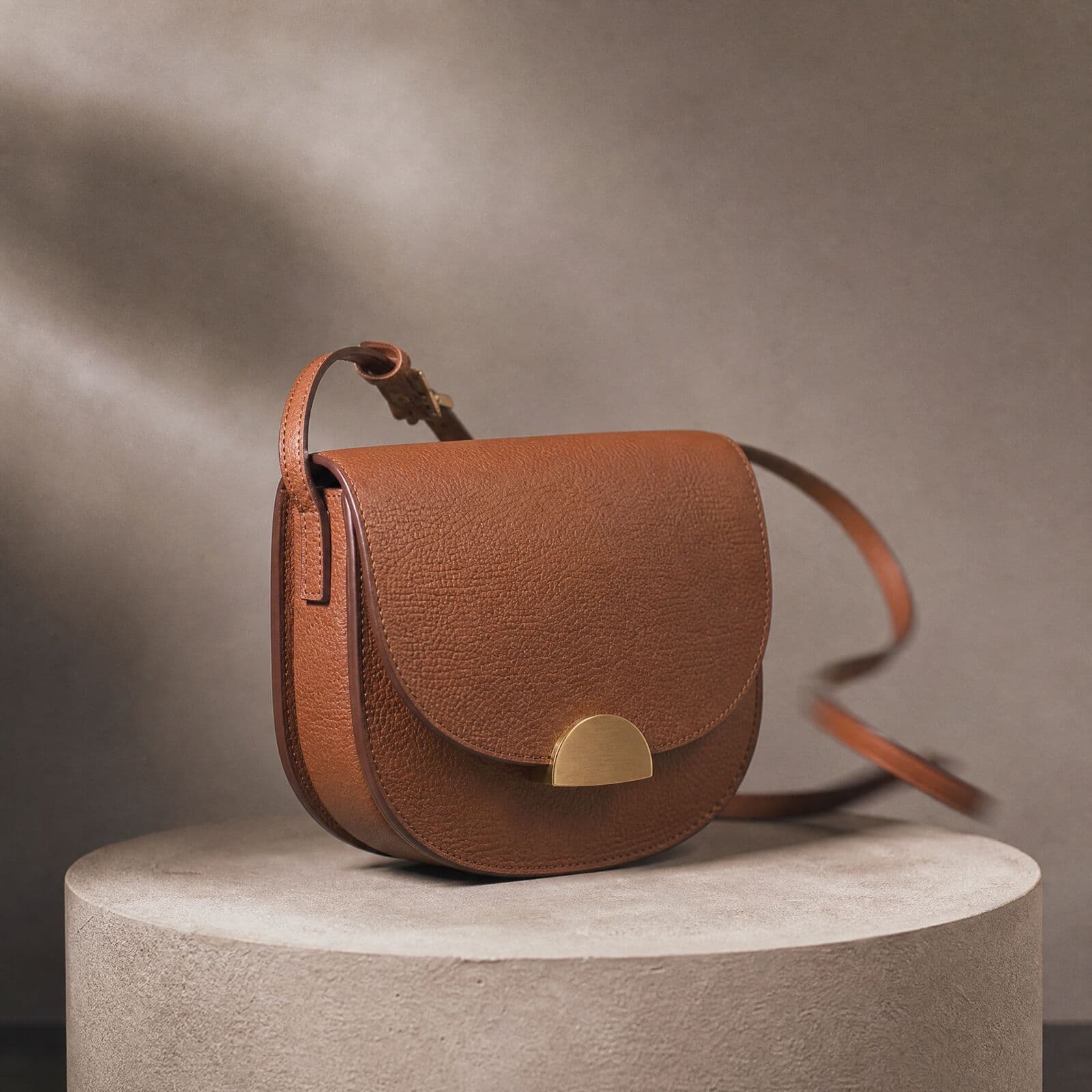
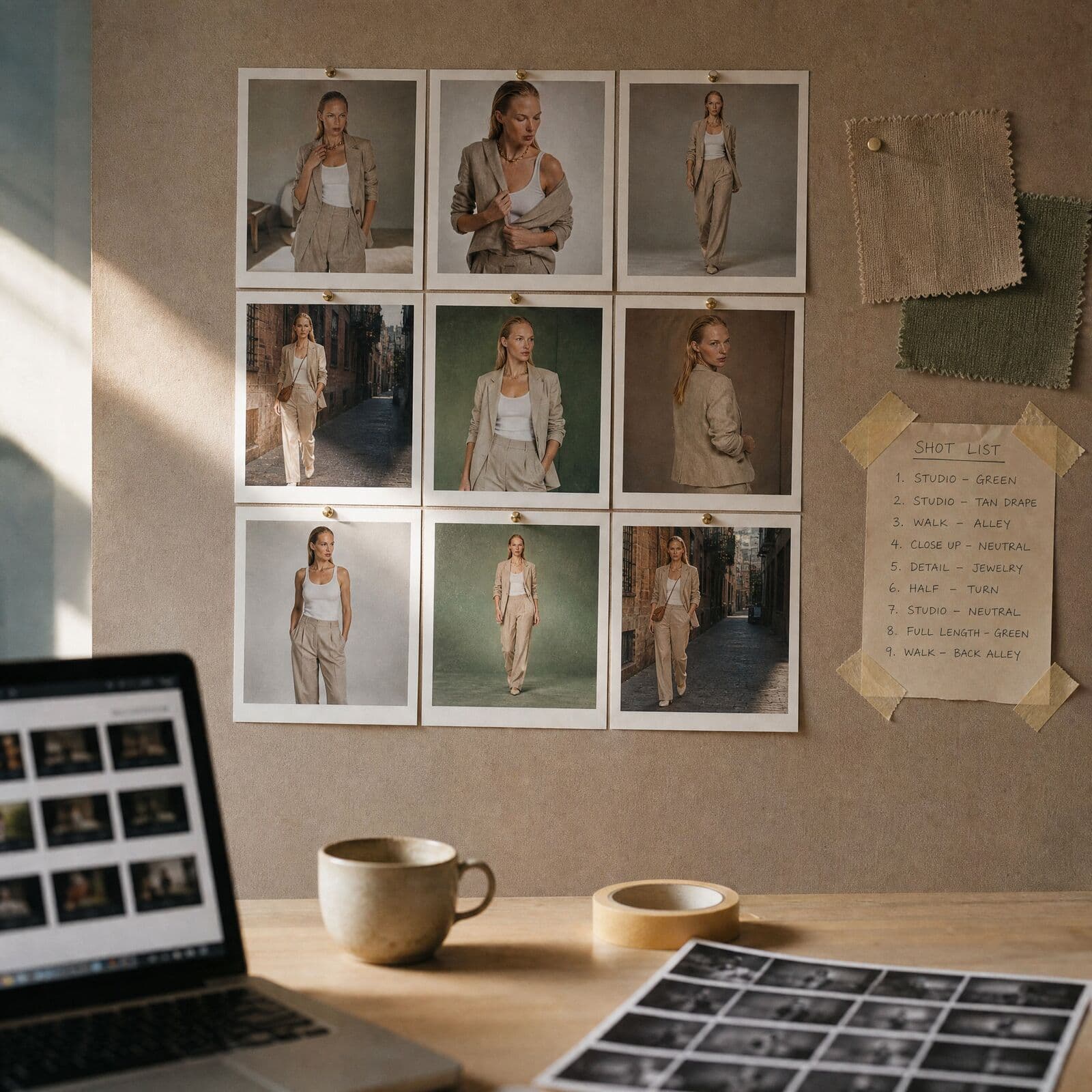
Generated for a brand
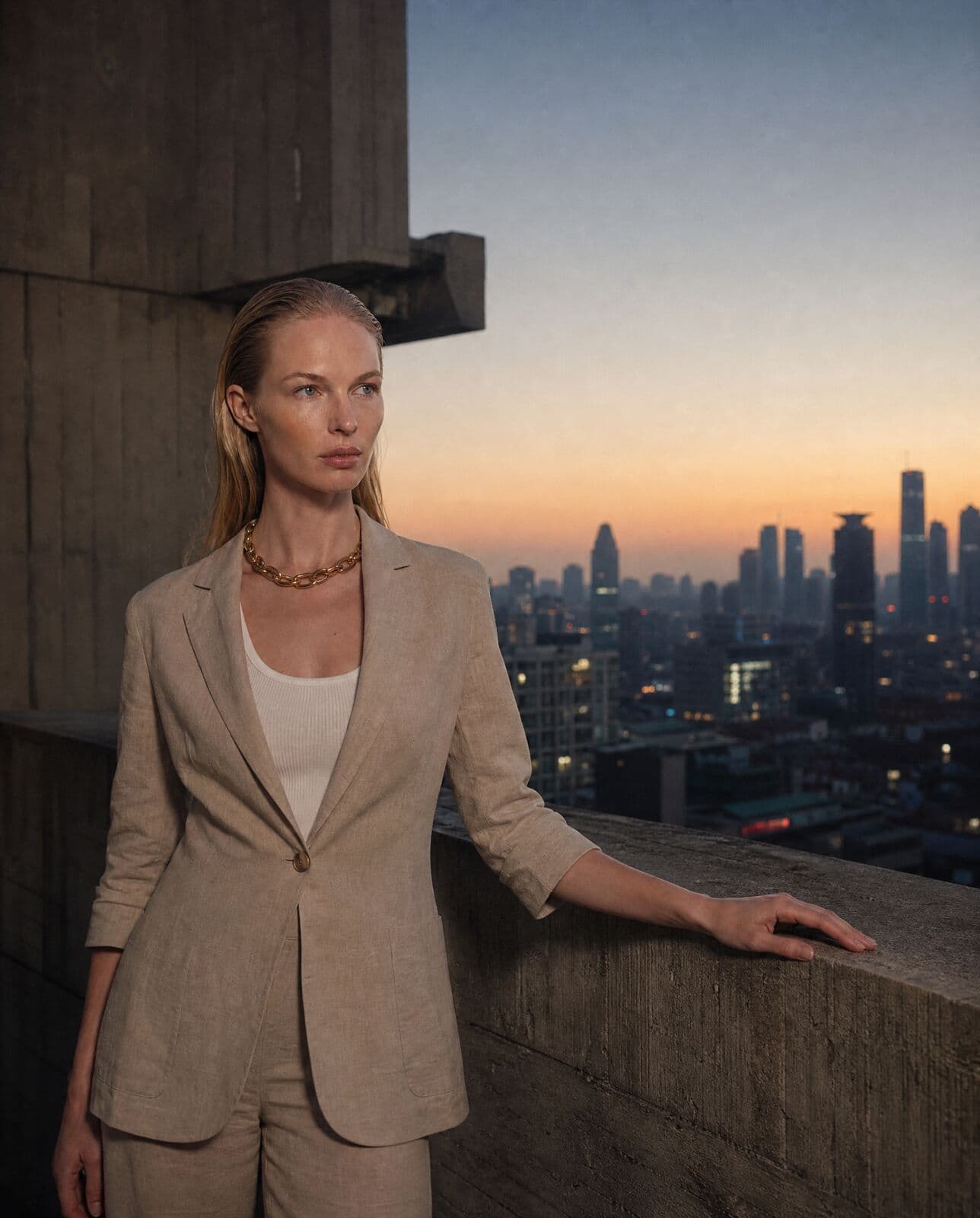
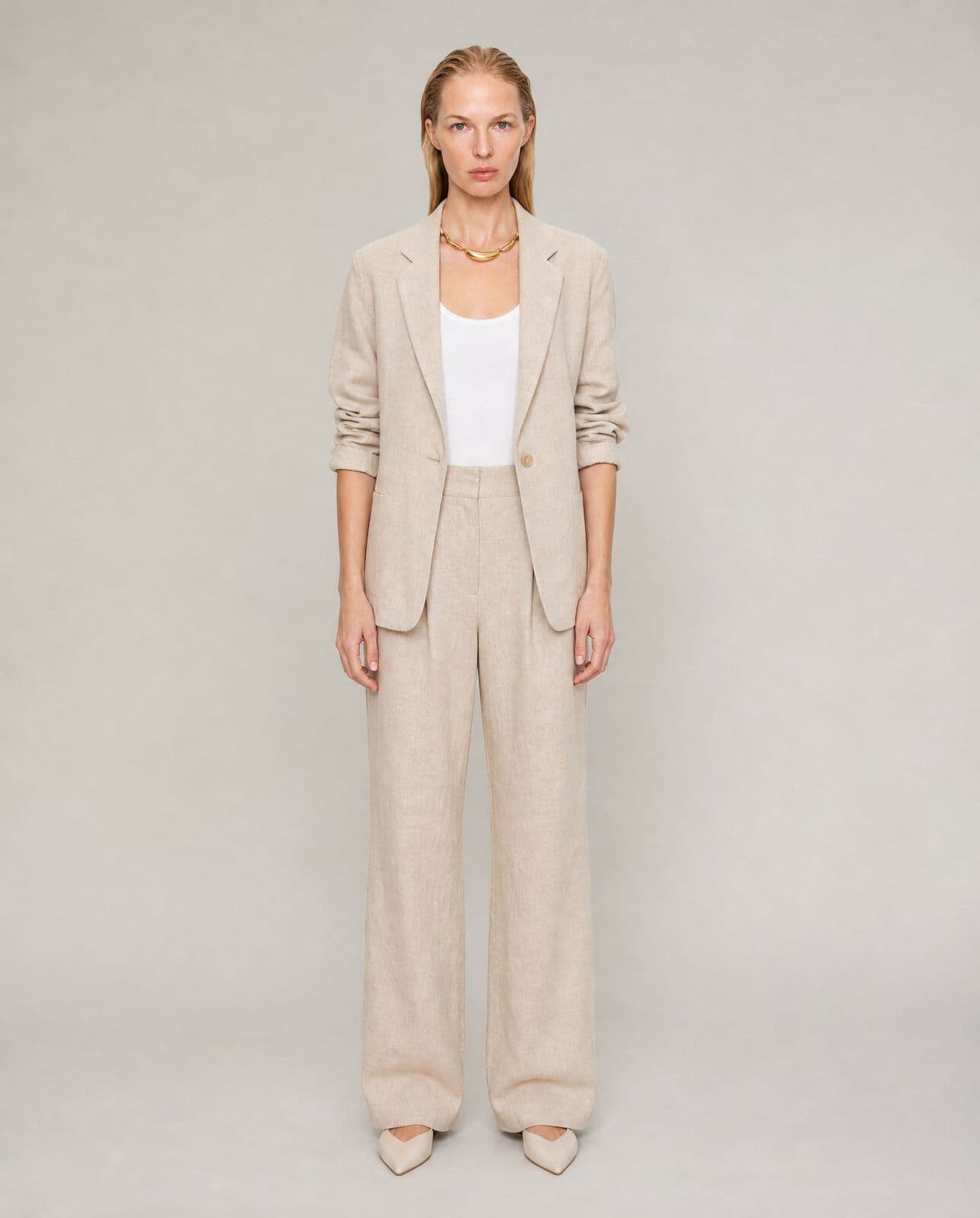
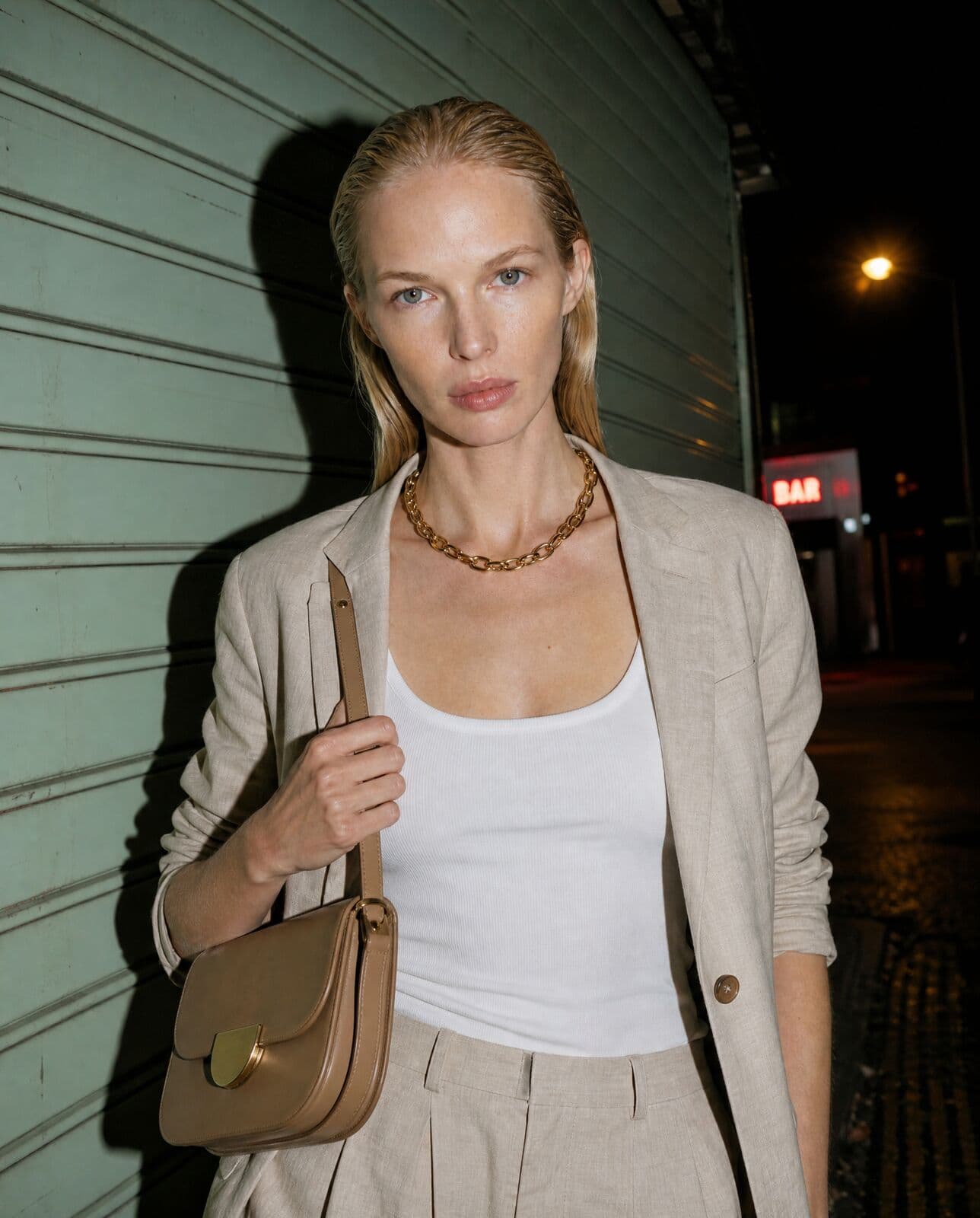
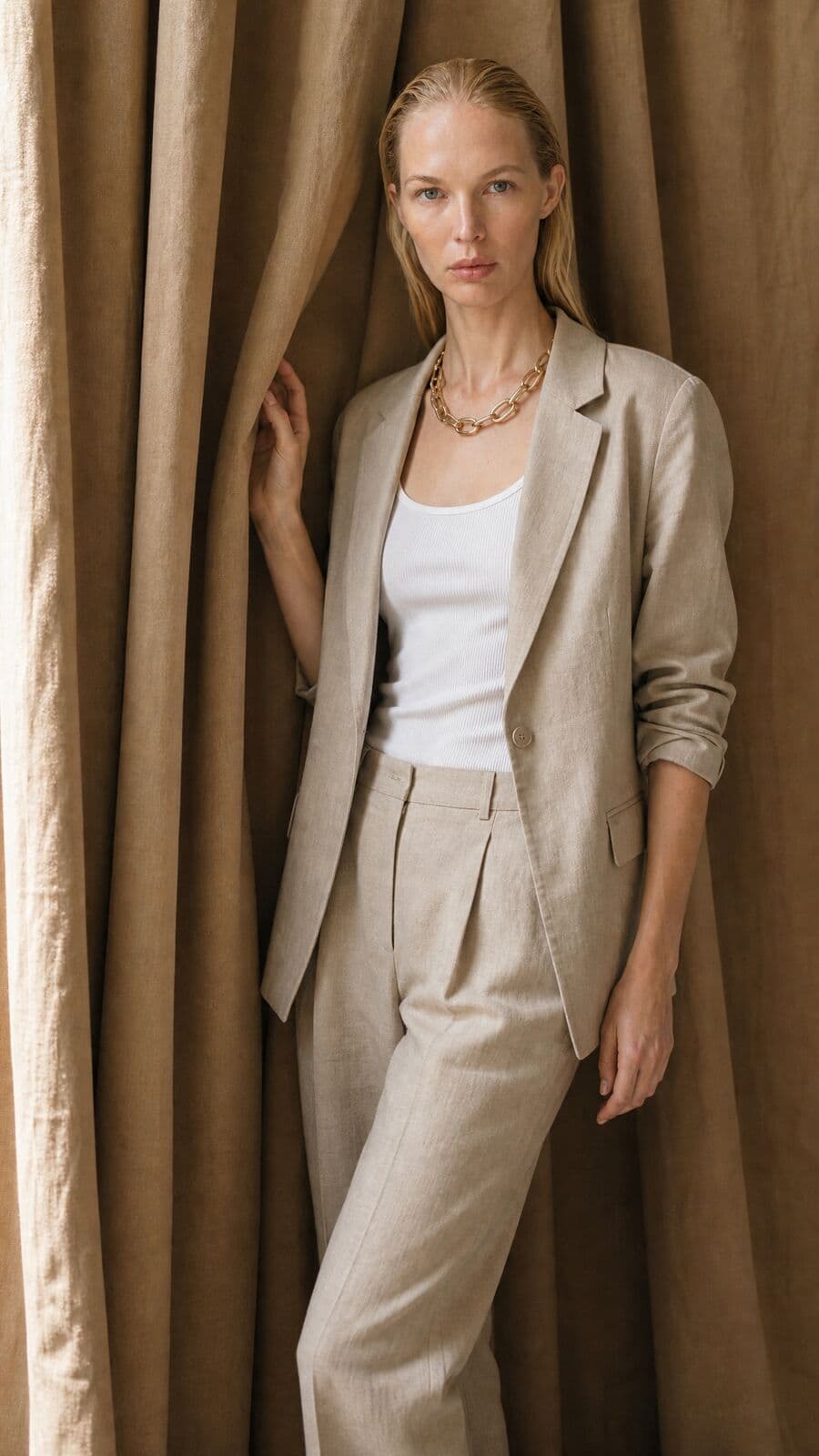
Frames made in Misu for one tailoring and accessories story, across formats and settings.
05
Edits, upscales and the Library
Generating is half the job. Open any image and choose Edit with AI to relight it, swap or remove the background, rotate the camera with Angles, retouch skin with Enhancer, apply a colour grade or transfer a style from a reference.
Upscale runs up to 4x on Topaz models, from a faithful sharpen to generative detail for soft sources. Every edit creates a new asset and keeps the original, so you can compare before and after and chain the next tool onto the result.
Every image and video is stored in the Library, searchable, with its edit history attached. Collect the frames you want to keep into Boards and share the selection with the team.
06
Questions people ask
Which AI image models does Misu use?
Many, including Nano Banana Pro, GPT Image 2, Seedream, Flux and Ideogram 3. Auto mode picks one per shot. You can also run up to four side by side or choose one yourself.
Why not use a general AI image generator?
You can, but you would re-describe your product, your model and your look in every prompt. Misu carries those in as references, trained models and brand guidelines, so results stay consistent across a campaign.
Can it render text and logos?
Yes. Shots that need legible copy, a logo on a garment or packaging text are routed to models that are strong at text rendering.
Do I have to write long prompts?
No. The Director builds the shot from a plain description, and Enhance rewrites a short prompt in place. Reference images already carry the product and the face, so the prompt only needs the scene, pose and light.
Can I generate product images without a person in them?
Yes. Leave the Character card empty in Generate, or pick No model when briefing a campaign, for packshots, flat lays and still life.
Who owns the images?
You do. Every plan includes full commercial rights to every generated asset, worldwide.
How much does each image cost?
One token is €0.005. An image at Studio’s default settings is about 30 tokens. Prices vary by model and resolution and are shown before you generate. Plans start at €29 a month.
Can I generate video from the images?
Yes, on every plan, priced in tokens like a still. Switch Generate to Video without losing your setup, and animate any still.
Get started
Your product.
The same face in every shot.
Full commercial rights · Licensed models · Stockholm
Misu is in beta and open to brands, agencies, freelancers and designers. We review every request and email your invite once it's approved, and every new studio starts with welcome credits.
BETA · REVIEWED BY HAND · FOUNDING PRICING LOCKED