Wardrobe
AI outfit generator for fashion brands
Your catalogue. Whole outfits.
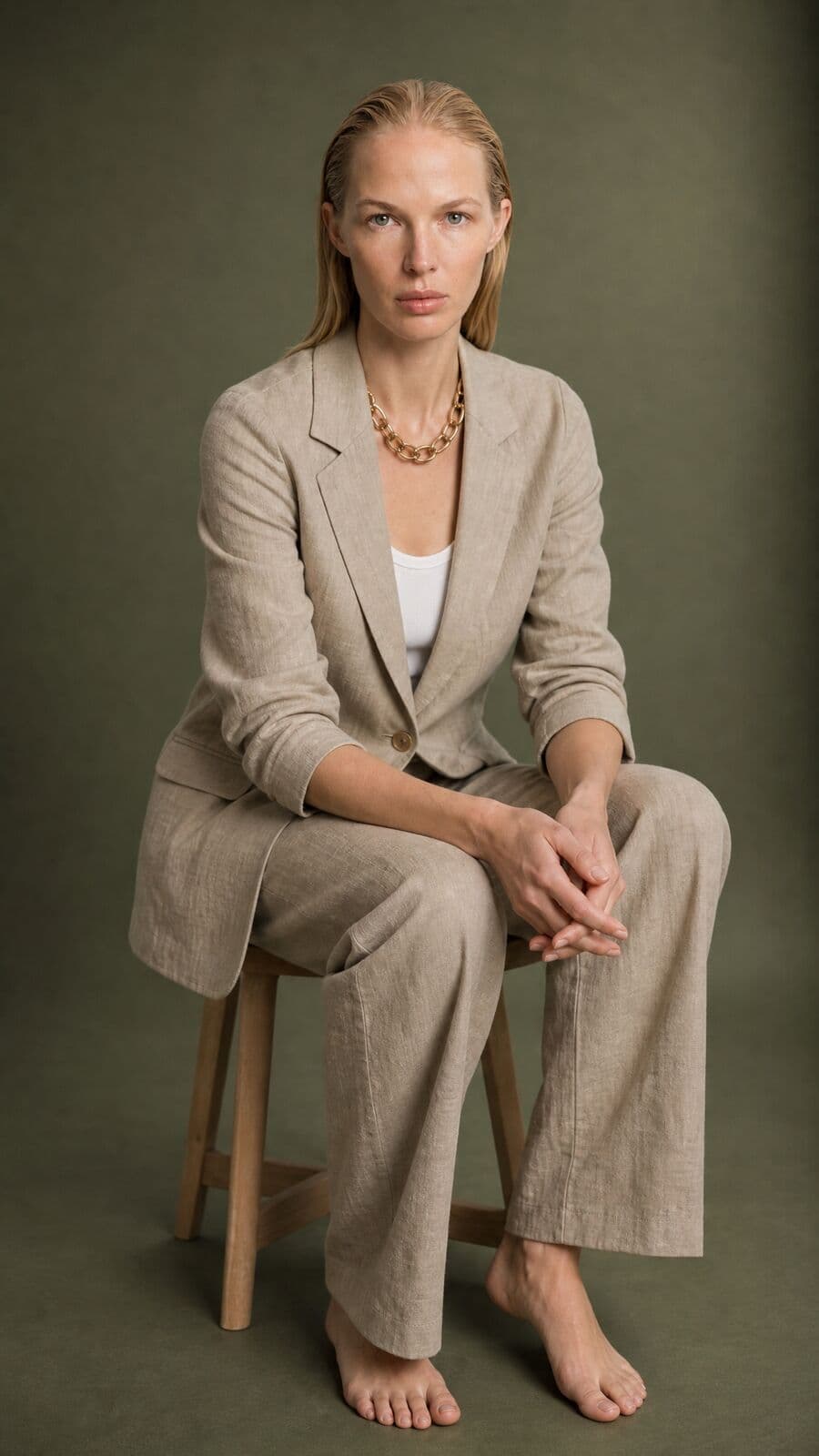
This is an outfit builder for brands, not for shoppers looking for something to wear. Wardrobe dresses one model in pieces from your own catalogue, renders the whole outfit as a single photograph, and keeps it as a saved Outfit you can reopen.
01
An outfit generator for the brand side
Most tools under this name answer a shopper: what should I wear today. A brand asks a different question. Which trousers go with the new blazer, on which model, and how does the full outfit look on a product page before the sample has been shot.
Wardrobe is built for that second question. The garments are not invented. They come from your Products page, the same catalogue that feeds the rest of the Studio. You pick who wears them, add the pieces, set the styling, and the outfit comes back as one photograph.
If you only need one garment on one person, the virtual try-on page and the clothes changer page cover that. This page is about the step after: mixing and matching pieces into complete outfits, saving them by name, and bringing them back next week to restyle or animate.
02
How to build an outfit on a model
Staging an outfit costs nothing. Tokens are spent when you press Generate, and the price is on the button first.
01
Categorise the catalogue
Each slot only lists products with a matching category. Set the category on the product and it appears where it belongs. A product with no category appears in no slot.
02
Choose who wears it
Open the model library. Your own trained talent sits first, ahead of the studio models. A Character Lock talent is dressed on its full-body plate, so the face is the one your campaign already uses.
03
Mix and match the pieces
Eight slots: Outfit, Outerwear, Tops, Sets, Bottoms, Socks, Shoes and Accessories. Every slot can hold several products, so a shirt under a knit under a coat is one outfit, not three runs.
04
Set the styling
Pose, backdrop, hair and makeup each show a picture of the option before you choose. Leave any of them alone and the model keeps what the base image already has.
05
Generate, then save
The outfit renders in one pass. Save Outfit keeps it under a name of your choice, with the model, the garments and the styling attached.
03
What the builder gives you
One render, one price
Every staged piece goes into the same render, so layers are resolved together. At current pricing a render is 84 tokens whether the outfit has two pieces or eight. If the render fails, the tokens come back.
Six poses, and more
Standing, Walking, Sitting, Leaning, Arms Crossed and Casual lead the Pose panel. Further body poses and yoga, pilates and fitness sets follow for activewear.
Six backdrops
White Studio, Light Grey, Outdoor Natural, Urban Street, Minimal Interior and Abstract Gradient. Or none, which keeps the backdrop of the model's own image.
Hair and makeup
Seven hairstyles and six makeup looks, from a sleek bun to a smoky evening eye. The person stays recognisably the same, so one model can carry a day outfit and an evening one.
A Stylist that knows your stock
The chat panel searches your real catalogue and proposes an outfit with pose and backdrop, which you apply in one click. It cannot render anything. Only the Generate button does.
A second attempt built in
Leather, fur and fitted cuts can trip a provider's moderation filter. When that happens the render retries on a fallback model automatically, at the price you were quoted.
04
Saved Outfits: reopen, restyle, rename
A saved Outfit is more than a picture. It holds the model, each garment as a structured item, the pose, the backdrop, the hair and the makeup, plus the render itself. That is what makes it reusable.
Outfits live on their own page under Wardrobe. Open one and it loads back into the builder exactly as it was staged, ready for a different coat or a different backdrop. Rename it when the working title stops making sense. Delete it when the season is over.
An Outfit can also leave the builder. Take to Editorial opens Generate with the render and every garment loaded as references, so the same outfit can be shot again on location, in a campaign frame, with the pieces still named individually. The render also lands in your Library, where it can go onto a moodboard or into a lookbook.
05
Motion: the outfit, moving
Once an outfit is generated, Motion makes the dressed model move. Pick a move from the library, such as Studio Walk, Turning to Camera or Catching Wind. Each one previews on hover.
Clips are five seconds long, the length of a product-page loop. There are two tiers: Standard, for clean fashion motion, and Premium 2K, which renders at 2K with more natural movement and costs more. Clips are silent by default. Standard can add sound if you ask for it; Premium 2K always records it.
The price is on the button before you press it. The clip keeps rendering while you carry on styling, lands in the Library, and stays attached to the Outfit once saved. Take to Video opens the same still and move in the Video studio for longer work.
06
Building an outfit or trying on one garment
Both happen in Misu. They answer different briefs.
- The question
- Outfit builderWhat goes with what, on whom
- Single-garment try-onHow does this piece look on a person
- Pieces
- Outfit builderSeveral per slot across eight slots
- Single-garment try-onOne garment
- Kept afterwards
- Outfit builderA named Outfit with garments and styling
- Single-garment try-onAn image in the Library
- Next step
- Outfit builderRestyle, animate, or take to Editorial
- Single-garment try-onUse the image as it is
- Good for
- Outfit builderShop-the-look, styled product pages, lookbooks
- Single-garment try-onA new colourway or a late sample
| Criteria | Outfit builder | Single-garment try-on |
|---|---|---|
| The question | What goes with what, on whom | How does this piece look on a person |
| Pieces | Several per slot across eight slots | One garment |
| Kept afterwards | A named Outfit with garments and styling | An image in the Library |
| Next step | Restyle, animate, or take to Editorial | Use the image as it is |
| Good for | Shop-the-look, styled product pages, lookbooks | A new colourway or a late sample |
07
What to check before you publish
The garment in the render is guided by your product photo. It is a reference, not a scan. Plain cuts and solid fabrics tend to hold well. Small prints, logos, text on a label and metal hardware are where a render can drift, so compare those against the real piece before an image goes on a product page.
Wardrobe uses the strongest image a product has: the Product Lock preview when the product is locked, then the ghost mannequin render, then the raw photo. A clear, evenly lit source photo is the single biggest thing you control.
It is photography, not a fit tool. The render shows a garment on a body with plausible drape and proportion. It does not simulate a size, and it should not be used to tell a customer how something will fit them.
08
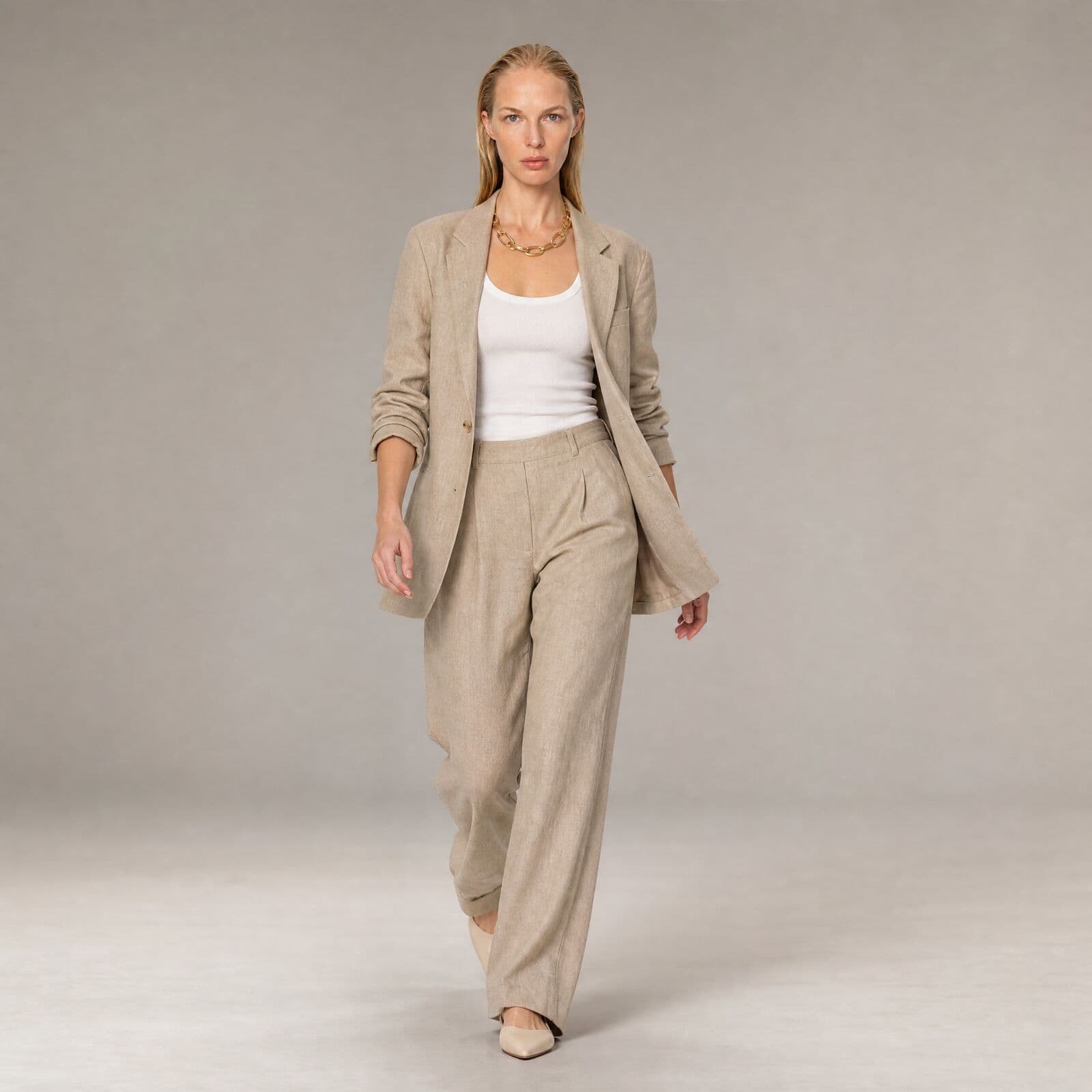
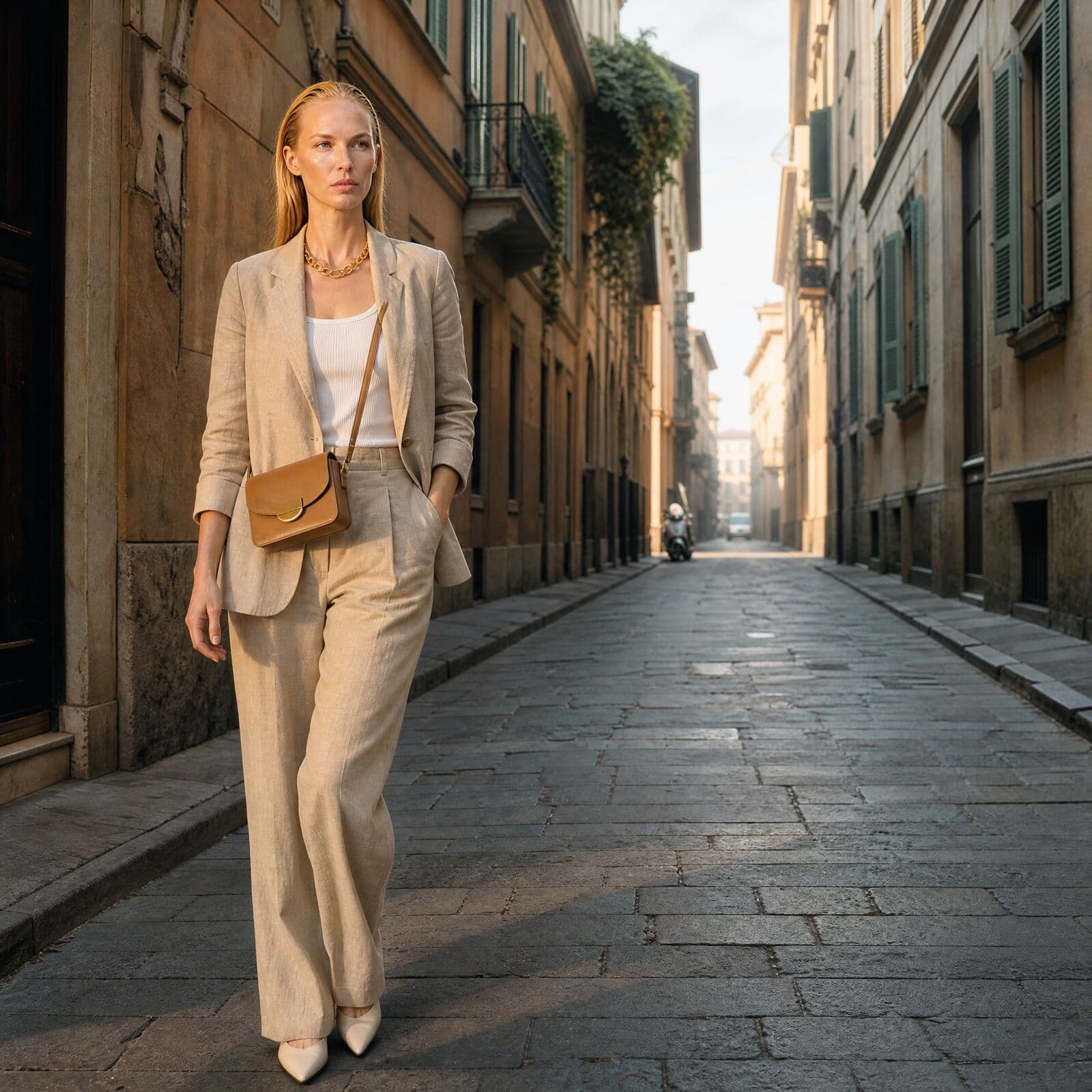
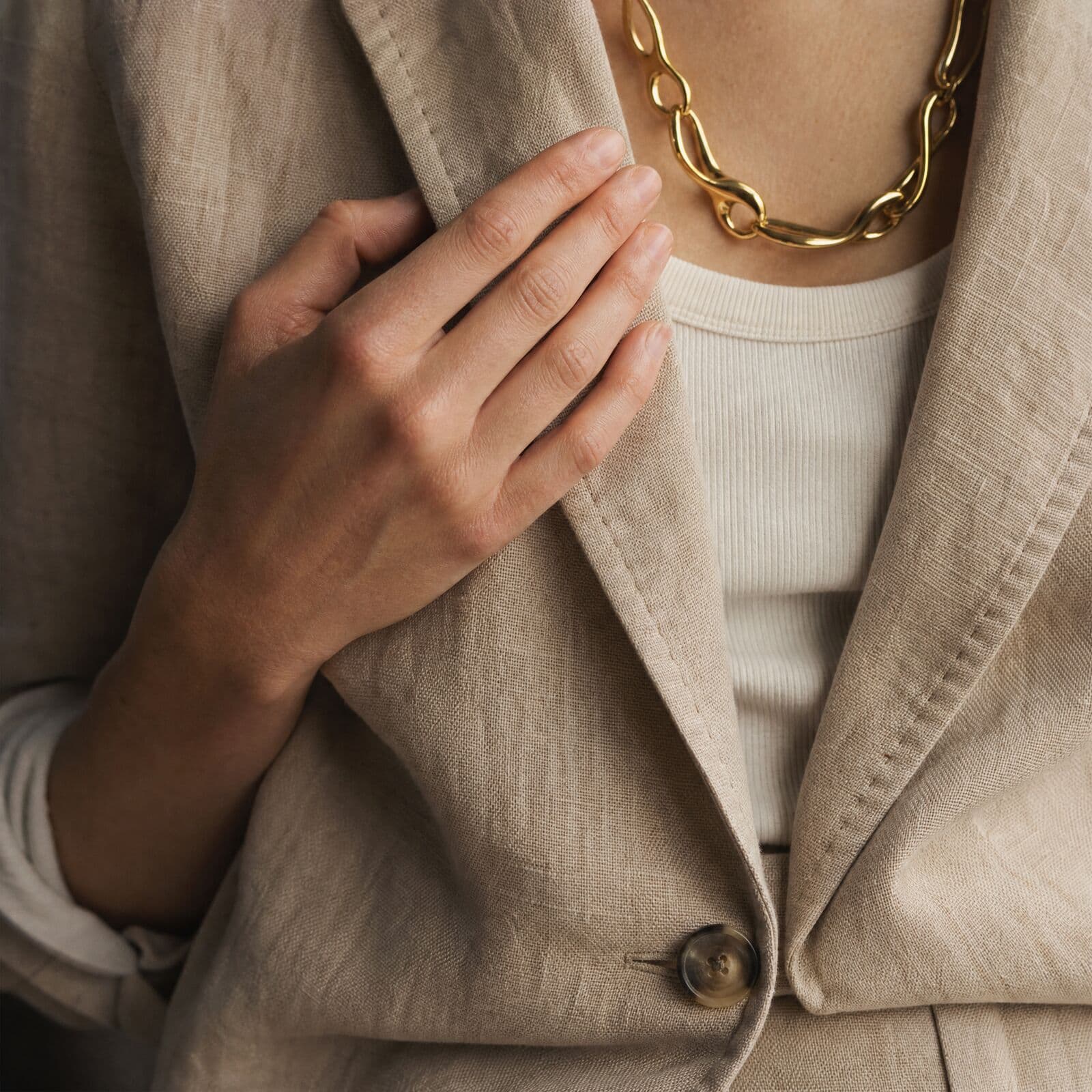
One suit, styled three ways
Frames made in Misu of the same linen suit on the same face: a walk, a street look with a bag added, and a close detail.
09
Questions people ask
What is an AI outfit generator for fashion brands?
A tool that combines a brand's own products into complete outfits on a model and renders them as photographs. In Misu it is called Wardrobe. It is made for brands dressing a model in their catalogue, not for shoppers looking for outfit ideas.
Can I mix and match outfits on the same model?
Yes. Keep the model, swap the pieces, and generate again. Each result can be saved as its own named Outfit, so a set of combinations on one face builds up quickly.
How many garments can one outfit hold?
There are eight slots: Outfit, Outerwear, Tops, Sets, Bottoms, Socks, Shoes and Accessories. Each slot accepts several products, and everything staged is rendered together in one pass.
What does an outfit cost to generate?
At current pricing one render is 84 tokens, with no multiplier per garment. Staging pieces is free. A motion clip is priced separately, and both prices are shown on the button before you press it.
Can I use my own model?
Yes. A talent you have trained with Character Lock appears first in the model library and is dressed like any studio model. Otherwise choose from the studio models and filter by gender.
Does the Stylist spend my tokens on renders?
No. The Stylist reads your catalogue and proposes an outfit, which you apply to the builder yourself. It has no way to generate an image. A render only starts when you press Generate.
Will the garment look exactly like my product?
Your product photo guides the render, and simple garments usually hold up well. Check prints, logos and hardware against the real piece before publishing, since fine detail is where a render can differ.
Can it show how an outfit fits in a given size?
No. It renders the outfit on the chosen model. It does not simulate sizes or measurements, so treat the result as photography and keep your size guide for fit.
Can I turn an outfit into video?
Yes. Motion animates a generated outfit as a five-second clip on a Standard or a Premium 2K tier. Clips are silent by default, are kept with the saved Outfit, and can be opened in the Video studio.
Keep reading
- WardrobeVirtual try-on AI for fashion brands
- Campaigns · MoodboardsAI lookbook generator for fashion brands
- Garment swapAI clothes changer for fashion brands
- Character LockA consistent AI fashion model, in every frame of the campaign
- Fashion photographyAI fashion photography, one face across the collection
Get started
Your product.
The same face in every shot.
Full commercial rights · Licensed models · Stockholm
Misu is in beta and open to brands, agencies, freelancers and designers. We review every request and email your invite once it's approved, and every new studio starts with welcome credits.
BETA · REVIEWED BY HAND · FOUNDING PRICING LOCKED